

How to Use Seedance 2.0
Step-by-step guide on how to use Seedance 2.0 — every generation mode explained with examples, prompt tips, and credit-saving techniques for beginners and pros.
If you're figuring out how to use Seedance 2.0, the number of options can feel overwhelming. Five model variants, six generation modes, and more parameters than most users ever touch. This tutorial breaks down each mode, explains when to use which model, and covers techniques that aren't obvious from the interface alone — like draft mode for cutting costs and video chaining for longer clips. By the end, you'll know exactly which model and mode to pick for any project — and how to spend the fewest credits getting there.
TL;DR
- Five models with different strengths: 1.5 Pro for audio-synced video, 1.0 Pro for balanced quality, 1.0 Pro Fast for speed, 1.0 Lite for multi-reference and budget work
- Six generation modes: text-to-video, first-frame, first-and-last-frame, multi-reference, audio generation, and video chaining
- Draft mode generates a low-cost preview before committing to a full render — saves roughly 40% per clip
- Video chaining uses the last frame of one clip as the first frame of the next, letting you build sequences well past the 12-second limit
- Upload images that match your target aspect ratio to avoid unwanted cropping
Pick the Right Model
Not every model does the same thing. Here's what each is built for:
| Model | Best For | Audio | Max Duration | Resolution |
|---|---|---|---|---|
| Seedance 1.5 Pro | Highest quality + sound | Yes | 4–12 sec | Up to 1080p |
| Seedance 1.0 Pro | Balanced quality and speed | No | 2–12 sec | Up to 1080p |
| Seedance 1.0 Pro Fast | Quick iterations | No | 2–12 sec | Up to 1080p |
| Seedance 1.0 Lite I2V | Multi-reference images | No | 2–12 sec | Up to 720p |
| Seedance 1.0 Lite T2V | Budget text-to-video | No | 2–12 sec | Up to 720p |
When to use what:
- Want the best output with native sound? 1.5 Pro. It generates audio — ambient sounds, sound effects, even spoken dialogue with lip-sync in 8+ languages — directly alongside the video.
- Need solid quality but don't require audio? 1.0 Pro handles most scenarios well.
- Iterating on ideas and want fast turnaround? 1.0 Pro Fast cuts render time at the cost of some fidelity.
- Working with multiple reference images (characters, scenes, style boards)? 1.0 Lite I2V was designed for exactly this. Note that it caps at 720p for reference-image workflows.
Text-to-Video
The first thing most people try when learning how to use Seedance 2.0. Type a prompt. Get a video. This is the simplest mode and the one with the most unpredictable output — which makes it useful for brainstorming visual ideas before locking in a direction.
The model interprets your text and generates a clip from scratch. Results vary between generations, even with the same prompt. If you need consistent, controlled output, start with image-to-video instead.
How to get better text-to-video results:
Write prompts using this structure: subject + motion, background + motion, camera + motion.
A vague prompt like "a girl in a field" gives the model too much room to improvise. A specific prompt like "a girl in a white dress running through a daisy field, wind blowing her hair to the left, camera slowly tracking forward at waist height" tells the model exactly what to render.
If your text-to-video output looks close but not right, don't keep re-rolling the same prompt. Generate a still image first (using text-to-image or an external tool), then feed that image into image-to-video mode. This two-step workflow gives you far more control over the final result.
Image-to-Video: First Frame
Upload a single image as the starting frame, then describe the motion you want. The model animates forward from that image while preserving its composition, colors, and style.
This mode works well when you already have a specific look — a product shot, a character design, a painted scene — and want it to come alive.
One thing that matters here: image quality directly affects output quality. Blurry or low-resolution uploads produce blurry video. Use the sharpest, highest-resolution source image you have.
With Seedance 1.5 Pro, you can enable audio generation on first-frame clips. The model produces synchronized sound — footsteps match walking, wind matches hair movement, dialogue matches lip movements. This removes the need to add audio in post-production for many use cases.
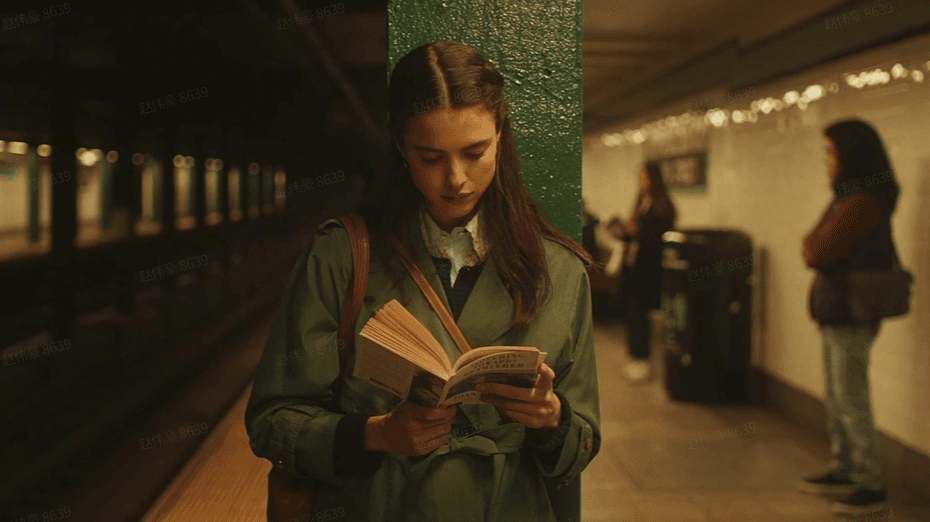
Example 1: Audio-synced video with scene transformation
Input image and prompt: "A subway roars past, pages and the girl's hair fly up, the camera begins a 360-degree orbit around her, the background gradually shifts from a subway station to a medieval cathedral, Western fantasy-style music fades in."
Example 2: Audio-synced dialogue with lip-sync
Input image and prompt: "The camera pushes in toward the character's face, a close-up, she is singing Peking Opera — 'The moon moves, flower shadows shift, as if a jade figure arrives' — the lyrics are full of emotion, the singing voice carries the unique charm and technique of traditional Peking Opera."
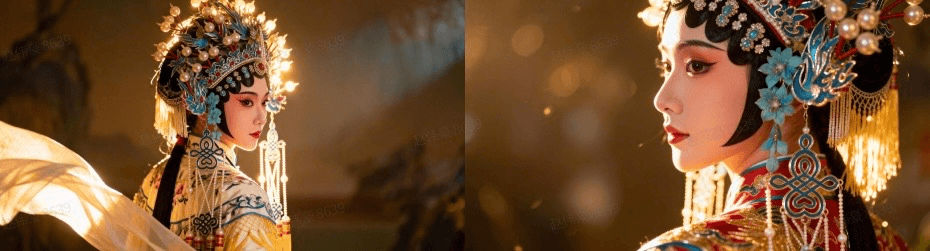
Image-to-Video: First and Last Frame
Define both the starting and ending image. The model generates the transition between them — filling in motion, camera movement, and scene changes to connect the two frames smoothly.
This is powerful for controlled transitions. Upload a front-facing portrait as the first frame and a side profile as the last frame, and the model creates a natural camera orbit between them. Or set a wide landscape as the start and a close-up of a flower as the end, and the model generates a zoom-in sequence.
How to reference the frames in your prompt:
Your text prompt describes the motion between frames. For a first-and-last-frame generation, write what should happen during the transition — not what the frames look like (the model already sees them).
Good prompt: "360-degree orbit around the subject, smooth camera movement"
Bad prompt: "A girl standing in a garden" (this describes the image, not the motion)
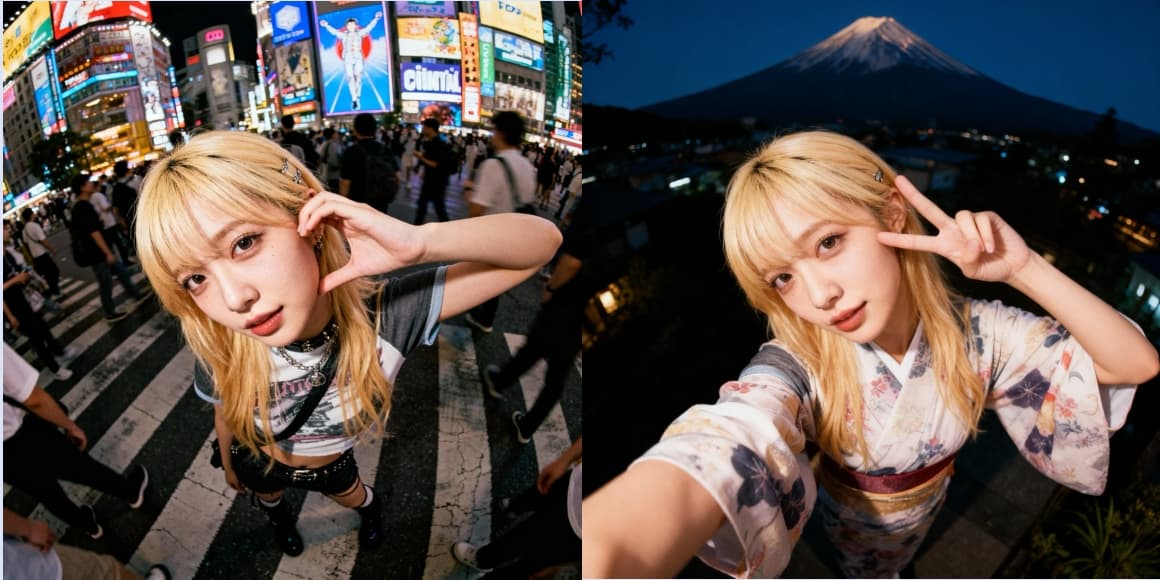
Example: 360-degree orbit from first and last frame
Prompt: "360-degree orbit around the subject, smooth camera movement"
Multi-Reference Image Generation
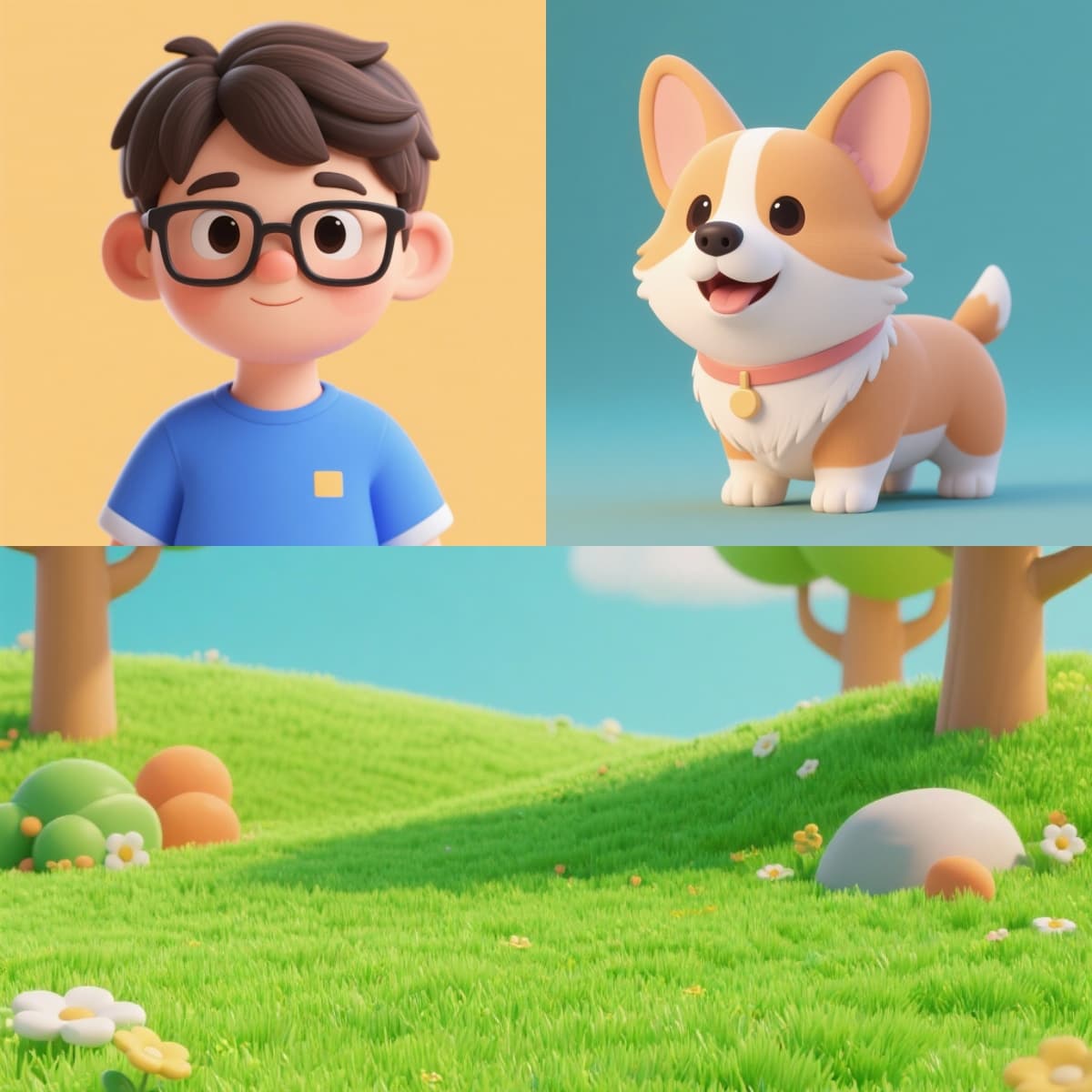
This is where Seedance gets genuinely different from most AI video tools. Upload multiple reference images — a character, a pet, a background — and reference them in your prompt using tags: [Image 1], [Image 2], [Image 3].
Example prompt: "[Image 1] boy wearing glasses in a blue t-shirt and [Image 2] corgi puppy, sitting on [Image 3] grass lawn, cartoon style"
The model pulls the visual identity from each reference image and combines them into a single coherent video. This means you can maintain character consistency across multiple generations by reusing the same reference images.
Example: Three reference images composited into one video
Reference images (boy, corgi, grass lawn) and prompt: "[Image 1] boy wearing glasses in a blue t-shirt and [Image 2] corgi puppy, sitting on [Image 3] grass lawn, cartoon style"
Multi-reference works best with Seedance 1.0 Lite I2V, which was specifically trained for this workflow. The other models support single-image input, but Lite I2V handles the multi-reference compositing with better accuracy.
One limitation: multi-reference caps at 720p. If you need 1080p output, you'll need to work with single-image modes on a Pro model.
Video Output Settings
Every generation lets you configure these output settings — and understanding them makes a real difference in your results:
| Parameter | Options | Notes |
|---|---|---|
| Resolution | 480p, 720p, 1080p | Lite models cap at 720p for reference workflows |
| Aspect Ratio | 16:9, 4:3, 1:1, 3:4, 9:16, 21:9, adaptive | Adaptive matches your input image ratio |
| Duration | 2–12 sec (Pro/Lite), 4–12 sec (1.5 Pro) | Longer clips cost more credits |
| Seed | Any integer | Fix this to reproduce a result you like |
| Camera Fixed | On/Off | Locks the camera in place — useful for dialogue scenes |
| Watermark | On/Off | Adds a Seedance watermark to the output |
The "adaptive" ratio option is worth knowing about. If you're doing image-to-video and your source image is 3:4, setting the ratio to "adaptive" tells the model to match the input ratio instead of forcing a crop. This avoids losing parts of your image to aspect-ratio conversion.
Seed numbers are your best friend for iteration. Found a clip you like but want to tweak the prompt? Keep the same seed. The motion patterns and composition stay similar while the content changes based on your updated text.
Writing Better Prompts
The official prompt formula: subject + action, background + action, camera + action.
Break your prompt into three layers:
- What's in the frame — "a woman in a red coat holding an umbrella"
- What's moving — "rain falling, puddles splashing with each step, coat flapping in wind"
- What the camera does — "slow tracking shot from the side, slight upward tilt"
A few rules that consistently produce better results:
- Be concrete, not abstract. "Joyful dancing" is vague. "Arms raised above head, spinning clockwise, feet leaving the ground slightly" gives the model something to work with.
- Put the most important details first. The model pays more attention to the beginning of your prompt.
- Drop what you don't care about. A 200-word prompt with filler dilutes the parts that matter. If you don't care about the background, leave it out and let the model decide.
For camera movements, specific terms work well: "dolly in", "orbit 360 degrees", "crane shot upward", "handheld shake", "slow zoom to close-up". The AI Video Prompt Generator can help you construct these if you're not sure what vocabulary the model responds to.
Draft Mode: Preview Before You Commit
Draft mode generates a quick, lower-quality preview of your video at 480p. You check whether the composition, motion, and subject behavior match your intent — and only then generate the full-quality version.
Why this matters for cost: A draft render costs roughly 60% of a standard render. If you'd normally spend 5 credits on a clip, the draft costs about 3 credits. When you confirm the draft and render the final version, the final clip reuses the same seed, prompt, and settings — so what you previewed is what you get, just at higher quality.
Over 10 generations, using draft mode for the ones that need iteration can save 20–40% of your total credit spend.
Draft mode is currently available on Seedance 1.5 Pro only and outputs at 480p. It doesn't support offline/flex rendering.
Example: Draft preview vs final render
Prompt: "The girl opens her eyes, gazes gently at the camera while holding the fox, the camera slowly pulls out, her hair blows in the wind, you can hear the wind."
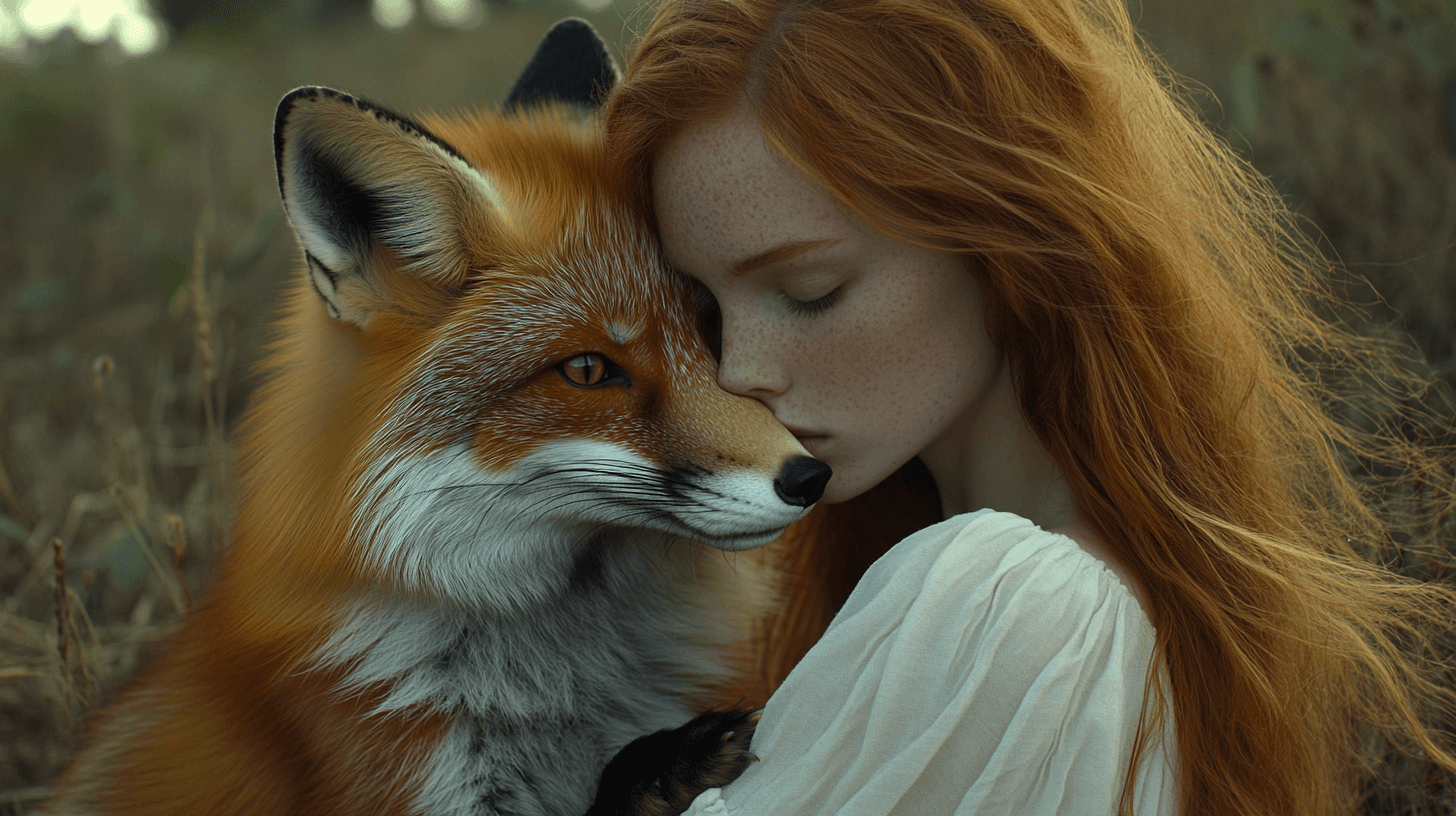
Draft preview (480p, ~60% cost):
Final render (full quality, same seed and settings):
Chain Videos for Longer Content
Each Seedance generation produces a maximum 12-second clip. To create longer sequences, you chain clips together: take the last frame of your first clip, use it as the first frame of your next clip, and repeat.
The workflow:
- Generate your first clip (text-to-video or image-to-video)
- Extract the last frame of that clip
- Use that frame as the first-frame input for your next generation
- Write a new prompt describing what happens next in the sequence
- Repeat until you have all the clips you need
- Stitch the clips together with any video editor (FFmpeg, Premiere, CapCut, etc.)
Because each clip starts from the previous clip's last frame, the visual continuity — character appearance, lighting, environment — carries across the full sequence. The transition between clips is nearly invisible when done right.
Prompt tip for chaining: Each new clip's prompt should describe only what happens in that segment, not recap the whole story. "The girl and the fox run across a sunlit meadow, the girl laughing" works. "Continuing from the previous scene where the girl was holding the fox, they now run across a meadow" adds unnecessary context the model can't use.
Example: Three chained clips telling a continuous story
Clip 1 — "The girl opens her eyes while holding the fox, gazes gently at the camera, the camera slowly pulls out, her hair blows in the wind":
Clip 2 — "The girl and the fox run across a sunlit meadow, bright sunshine, the girl smiling radiantly, the fox jumping joyfully":
Clip 3 — "The girl and the fox rest under a tree, the girl gently strokes the fox's fur, the fox lies contentedly on the girl's lap":
Image Cropping: What to Know Before Uploading
When your input image's aspect ratio doesn't match your chosen video ratio, the model crops your image to fit. Cropping is always center-aligned — it cuts equally from both sides (or top and bottom).
Practical example: You upload a 16:9 landscape photo but set the output ratio to 9:16 (vertical). The model will crop heavily from the left and right to make the image fit a vertical frame. If your subject was centered, you're fine. If they were near the edge, they might get cut.
How to avoid unwanted cropping:
- Match your image ratio to your target video ratio as closely as possible
- If you can't match exactly, center your subject in the frame with extra padding on the edges
- Use the "adaptive" ratio setting to let the model match your input image's natural proportions
This matters most for image-to-video workflows. Text-to-video doesn't involve image input, so there's nothing to crop.
Example: Same 16:9 source image cropped to different aspect ratios
Source image (16:9):
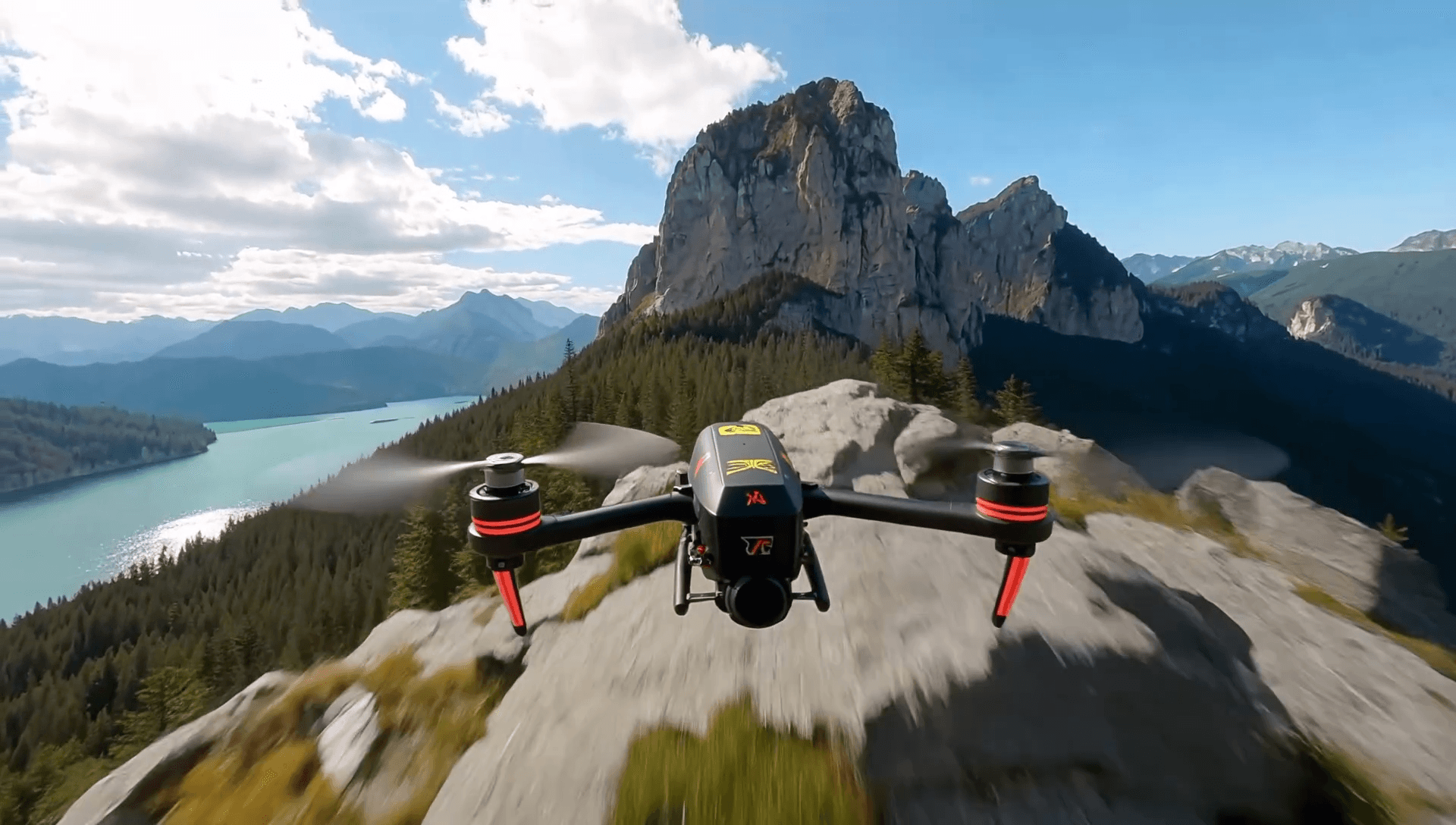
21:9 (ultra-wide — slight top/bottom crop):
16:9 (matches source — no crop):
4:3 (moderate side crop):
1:1 (square — significant side crop):
3:4 (portrait — heavy side crop):
9:16 (vertical — extreme side crop):
Common Mistakes When Using Seedance 2.0
- Using 1080p with Lite models for reference workflows. It either triggers an error or falls back to 720p silently. Check the model's supported resolutions first.
- Writing prompts that describe the image instead of the motion. The model can see your uploaded image. Tell it what to do with it, not what it looks like.
- Uploading low-resolution source images. Garbage in, garbage out. The quality of your input image sets the ceiling for your output video.
- Ignoring the seed parameter. If you generated something close to what you want, grab the seed value before re-rolling. You can refine from a good starting point instead of starting over.
- Chaining clips without matching prompts. Each segment prompt should be self-contained. The model doesn't know what happened in the previous clip.
FAQ
How do I use Seedance 2.0 for the first time?
Create an account at seedance2.so, collect your free credits, and head to the studio. Pick a generation mode — text-to-video is the easiest starting point — write a prompt, and hit generate. The rest of this tutorial covers each mode in detail.
Which Seedance 2.0 model should I start with?
Start with Seedance 1.5 Pro if you want the highest quality and native audio. If you're just experimenting and want faster results, 1.0 Pro Fast lets you iterate quickly. For workflows involving multiple reference images, use 1.0 Lite I2V.
Can Seedance 2.0 generate videos longer than 12 seconds?
Not in a single generation. Each clip caps at 12 seconds. But you can chain clips together by using the last frame of one clip as the first frame of the next. After generating all segments, stitch them with a video editor. This workflow produces sequences of any length with consistent visuals.
Can I use Seedance 2.0 videos for commercial projects?
Yes. Videos you generate are yours to use in commercial projects — ads, social media content, client work, product demos. Check the terms of service for full licensing details.
How do I keep a character looking the same across multiple videos?
Use multi-reference image generation with the same character reference images across all your generations. Seedance 1.0 Lite I2V is optimized for this. For Pro models, use the same source image as the first frame and keep a consistent seed value.
How does Seedance 2.0 compare to Runway or Kling?
Each tool has different strengths. Seedance 2.0 stands out for native audio generation, multi-reference image compositing, and draft mode for cost control. For detailed side-by-side comparisons, see Seedance 2.0 vs Runway and Seedance 2.0 vs Kling.
Does Seedance 2.0 generate audio?
Only Seedance 1.5 Pro generates audio natively. It produces ambient sounds, sound effects, and spoken dialogue with lip-sync in English, Mandarin, Japanese, Korean, Spanish, French, German, and Portuguese.
Start Using Seedance 2.0
Now you know how to use Seedance across every generation mode. Here's the fastest way to see it in action: go to the Seedance 2.0 studio, upload a photo from your camera roll, select First Frame mode, and hit generate — your image comes alive in under a minute. The AI Video Prompt Generator can help you write your first text-to-video prompt. For more techniques, read our camera movement prompt guide and reference images guide.
Author

Categories
More Posts

5 Best Image to Video AI Generators in 2026 (Tested With Real Projects)
We tested the top image to video AI tools on real production work. Honest breakdown of Seedance 2.0, Runway, Pika, Kling AI, and Veo 3 — features, pricing, and output quality compared.

Seedance 2.1 Pricing: Rumors vs the Real $0.10 Floor
ByteDance denied an imminent Seedance 2.1 release on May 20. The rumored budget tier and today's real $0.10/sec floor on wrappers tell the actual story.

Seedance 2.0 camera movement prompts: the complete guide to cinematic AI video
Master camera movement prompts for Seedance 2.0 and other AI video generators. A three-tier system covering basic movements, emotional modifiers, and advanced combinations.