
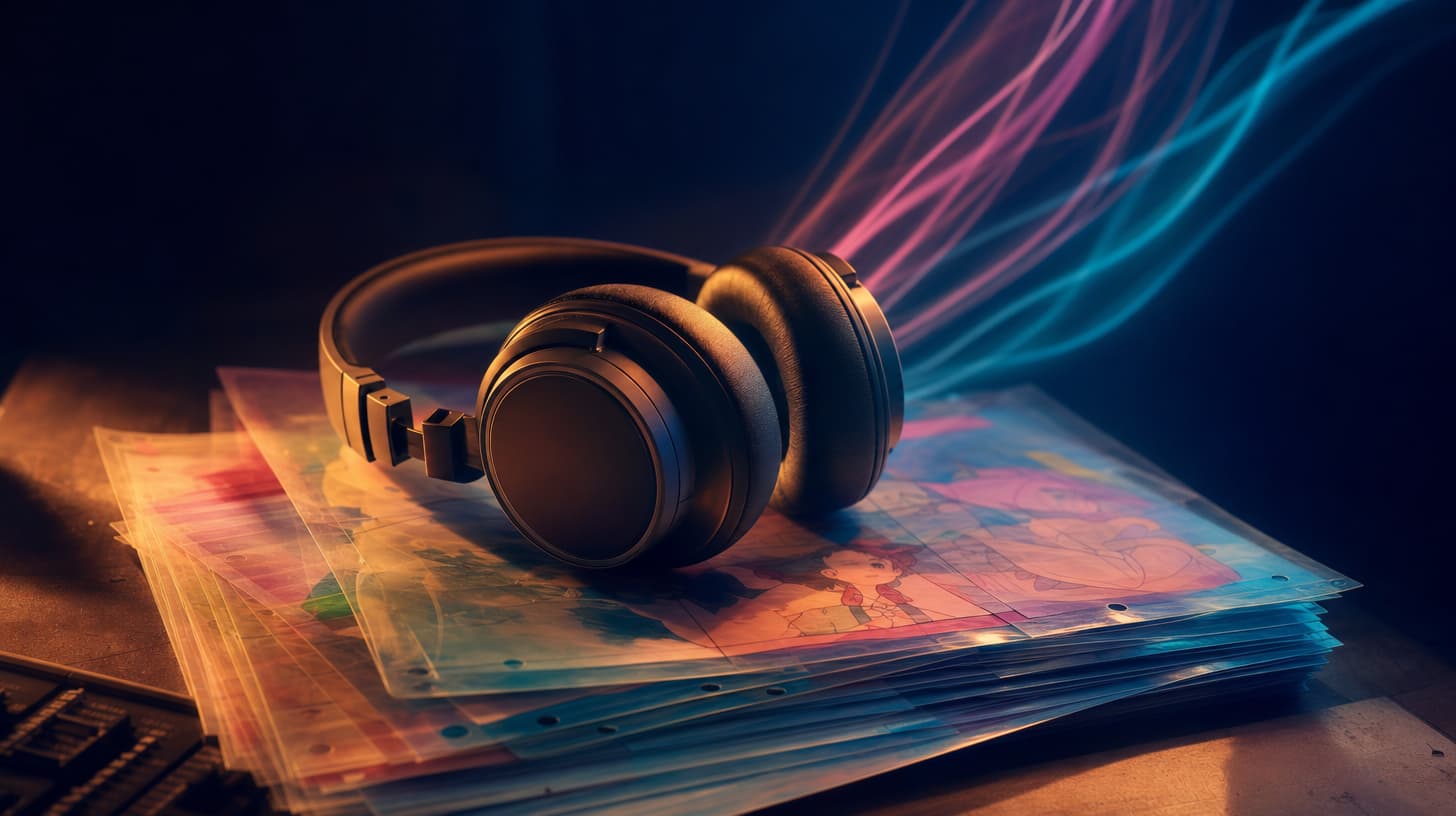
How to make an anime music video with AI, step by step
Learn how to make an anime music video with AI: lock a character's look with reference-to-video, then cut every scene to the beat with a beat-sync tool.
Making an anime music video with AI is not the same job as animating one still picture to a song. A real AMV needs the same character across a dozen shots, and it needs those shots to land on the music. Those two things are what break most attempts. Here is the workflow I actually use: pin the character's look with a reference image, then let a beat-sync tool handle the cutting.
seedance2.so is a third-party studio built on ByteDance's Seedance models, so you get the model's reference and audio features without touching any API. Two tools carry this whole workflow. Reference-to-video keeps your character on-model from scene to scene, and beat-sync-video lines the edit up with the track. Everything else is planning.
TL;DR
- Start from one or two reference images so the same character shows up in every shot. That is the reference-to-video step, and it accepts multiple references at once.
- Beat-sync-video is the piece that is genuinely hard to do by hand: it aligns the generated motion and cuts to the music you are working to.
- Standard clips run 5, 10, or 15 seconds. The Seedance 2.5 studio pushes a single clip to 30. Stitch several to cover a full hook.
- Mini, Fast, and Standard tiers trade speed for quality. Standard tier outputs 480p or 720p. 1080p and 4K live in the Portrait tier, so plan around that.
- Design your own character. Rebuilding a copyrighted anime IP shot-for-shot is where this goes wrong, and it is easy to avoid.
- No credit card to start, free credits on signup, and generations come out without a watermark.
How the AMV pipeline fits together
Think of an AMV as three jobs stacked on each other. First you decide who is on screen and lock their look. Then you generate the individual shots. Then you make the whole thing move with the song.
Most tutorials only cover the middle step, which is why their results look like a slideshow with a track laid over the top.
You can start a shot two ways. Text-to-video builds a scene from a written description, which is fine for establishing shots and backgrounds. Image-to-video takes a still and animates it, and its first-and-last-frame control is handy when you want a shot to begin and end on a specific pose. For character work, though, the tool that matters is reference-to-video.
Locking a character's style with reference-to-video
Reference-to-video takes more than one reference image, and that is the whole trick for anime characters. Feed it a small set that describes your character from a few angles. A front view, a three-quarter turn, and a close-up on the face and hair give the model enough to read one identity and carry that design into motion.
I keep the references consistent in art style. If one image is flat-cel anime and another is a semi-realistic render, the output drifts between the two. Same line weight, same color palette across every reference. Then I write the shot prompt around actions instead of appearance, because the appearance is already coming from the images.
You reuse that same reference set across every shot in the video. That is what keeps the character recognizable from the first frame to the last. It is also the single biggest difference between an AMV that reads as one piece and a pile of unrelated clips.
Cutting to the beat with beat-sync-video
This is the part I care about most, and it is the one thing you will not find in a plain text-to-video box. Beat-sync-video takes the track you are building to and aligns the generated motion and cuts to its rhythm. Instead of rendering a clip and then hand-trimming it in an editor until a turn happens to fall on a snare, the timing comes out of the generation itself.
Here is how I run it. I pick the section of the song first, usually a 10 to 15 second hook, because that is a length a single clip covers well. I decide what should happen on the strong beats: a camera whip, a pose change, or a cut to a fresh angle. Then I describe those beats in the prompt and let the tool place them against the music.
Tracks with clear percussion make the sync easy to see. A four-on-the-floor kick or a hard backbeat gives the motion obvious landing points. Ambient pads and loose acoustic material give the tool less to hook onto, so the result reads as generally in time rather than snapping to a specific hit.
That is not a flaw. It is just what the source track hands you to work with, and it is worth choosing your section with that in mind.
When I need more than one clip's worth of hook, I generate each section separately, keep the same reference set so the character holds, and join the clips in video-editing. The beat-sync happens per clip, and stitching keeps the through-line intact.
Building an anime music video with AI, scene by scene
Here is the full pass, start to finish. I storyboard the hook on paper first, even roughly, so I know how many shots I need and which beats they land on. For a 15-second hook that is usually three to five shots.
Build the character reference set once. Generate each shot with reference-to-video, describing the action and the environment while the references handle the face and outfit. Run the beat-sensitive shots through beat-sync-video against the track.
If a shot has the character singing a line, native audio can lip-sync it in multiple languages, so a Japanese-language hook is on the table. Ambient sound and effects can go on the same way when a shot needs a whoosh or a crowd behind it.
On length and quality, a few numbers decide your plan. Standard clips are 5, 10, or 15 seconds, and the Seedance 2.5 studio stretches a single generation to 30 seconds, which cuts down how much stitching a longer hook needs.
Pick a tier by what the shot is for. Mini and Fast are quick for testing framing and timing, and I render the keeper on Standard.
Standard tier tops out at 480p or 720p, which is plenty for most social AMVs. If you specifically need 1080p or 4K, that sits in the Portrait tier, so plan around it rather than assuming every clip can go 4K. Check pricing for how the tiers and credits line up before you batch out a long piece.
Design your own character instead of copying an anime IP
One rule keeps this workflow clean. Draw your own character. It is tempting to feed reference images of a famous anime character and rebuild a scene from a show you like, but that is building a derivative of someone else's copyrighted IP, and it is the fast route to a blocked generation or a takedown.
The reference workflow is built for original design anyway. Sketch a character, or generate a few concept frames, and use those as your reference set. You end up with a character nobody else has, which is better for a channel over time.
Drawing on the genre's look is fine. Rebuilding a specific copyrighted character and their world is the part to keep off, and it is an easy line to stay on the right side of.
Frequently asked questions
Do I need to draw to make an anime music video with AI?
No. You can generate your character's concept frames with text-to-video or a still image, then use those as the reference set for reference-to-video. Drawing helps if you want tight control over the design, but it is not required to get an original character on screen.
How long can a single AMV clip be?
Standard clips are 5, 10, or 15 seconds. The Seedance 2.5 studio takes a single generation up to 30 seconds. For anything longer, like a full chorus, you generate several clips with the same reference set and stitch them in video-editing.
Can the character actually sing in the video?
Native audio can lip-sync a character to a spoken or sung line, and it handles multiple languages, so a Japanese or English hook both work. For most AMVs the music sits over the visuals, but a lip-sync shot is a strong way to open a hook if your character delivers a line.
Which tier should I use for an AMV?
Test framing and beat timing on Mini or Fast, since they are quick, then render the shots you are keeping on Standard for the better quality. Batching a whole video on the top tier before you have locked the edit wastes credits.
Can I make a 4K anime music video?
Standard tier outputs 480p or 720p, which covers most short-form and social AMVs. 1080p and 4K are in the Portrait tier, so a 4K AMV means working in that tier. For a vertical clip headed to a phone feed, 720p is usually all you need.
Is it safe to use a famous anime character as a reference?
No. Feeding references of a copyrighted character to rebuild them is a derivative work, and it can get the generation blocked. Design an original character with a similar genre feel instead, and use your own concept art as the reference set.
Putting your first AMV together
The workflow stops feeling complicated once you have run it once. Lock the character with a reference set, generate the shots, push the beat-sensitive ones through beat-sync-video, and stitch. The two tools that do the heavy lifting, reference-to-video and beat-sync-video, both sit in the studio, and signup gives you free credits with no card, so you can test the full loop before committing to a long project.
Start with a 15-second hook and one original character. That single hook teaches you more about making an anime music video with AI than any amount of reading, and everything after it is the same steps at a larger scale.
Further reading
Author

Categories
More Posts
How to Make Money With AI Videos: 4 Real Paths
Four honest ways to make money with AI videos: custom client work, stock footage, your own channel, and local business services, plus how to control cost.

Seedance 2.0 vs Veo 3: Which AI video generator fits your workflow?
A head-to-head comparison of Seedance 2.0 and Google Veo 3 covering output quality, audio generation, multi-reference input, pricing, and real production use cases for 2026.

Seedance 2.0 Content Filter Guide: How to Get Your Prompts Approved
Getting 'Your content did not pass the review' in Seedance 2.0? This practical guide covers tested techniques for character description, action scenes, and prompt structure that pass content filters on the first try.